Map modes
LOGOS offers a wide range of options allowing to create flight missions of any complexity. A number of map editing modes have been created for it. Each mode has its own unique capabilities. By combining different modes, you can create flight missions with virtually unlimited flight possibilities. Let's take a closer look at each mode.View mode
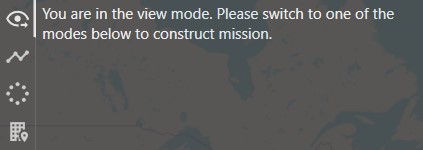
Prohibits flight missions editing.
This is the default mode, which is also recommended to be switched to before launching the UAV.
Waypoints
The mode for plotting waypoints.
After adding a point, you can change the flight altitude and speed. A speed value of '-1' means no change.
There are also camera settings and PWM settings buttons at the bottom of the mode.
In order to edit a previously plotted point, right-click on it and select 'Edit', or 'Remove' to remove it from mission.
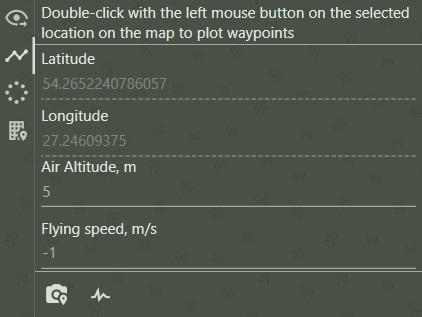 If the home and take-off points have not been added, then in this mode they are always applied first and only then the waypoints.
Point of interest with circling flight
The mode for plotting the point of interest with circling flight.
When adding a point of interest to the map, the program automatically generates a circle with default settings.
You can change the flight altitude, flight radius, speed, number of flight points and direction (clockwise/counterclockwise).
A speed value of '-1' means no change.
There are also camera settings, PWM settings and vertical scaling buttons at the bottom of the mode.
In order to edit a previously plotted point, right-click on it and select 'Edit', or 'Remove' to remove it from mission.
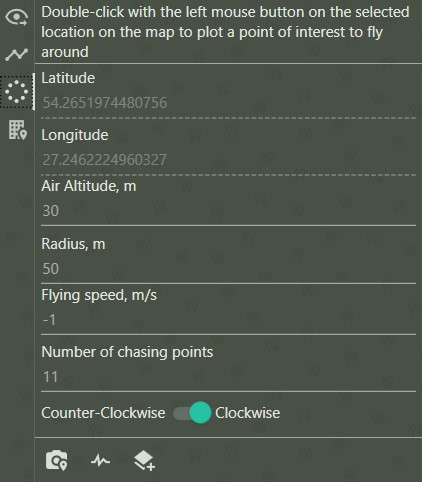 If the home and take-off points have not been added, then in this mode they are always applied first and only then the point of interest.
Object binding
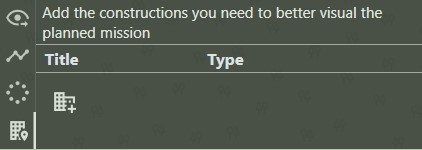
The object binding mode can help to better visualize the planned mission.
This mode is described in details in object binding section.
Inspection
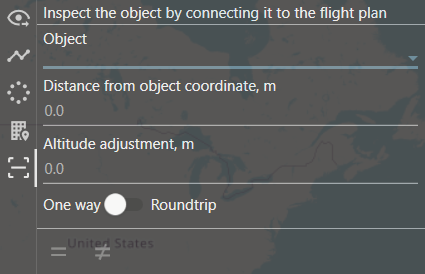
Inspection mode allows You to generate the route that goes against the selected object.
More details can be found in Wind turbine blades inspection section.